
How To Reset the ESS Utumishi Portal Password?
If you’ve forgotten your ESS Utumishi password or need to reset it for security reasons, you’re in the right place. Resetting your password from the Employee Self-Service (ESS) portal is a simple process that will help you regain access to your account and continue managing your personal and employment details.
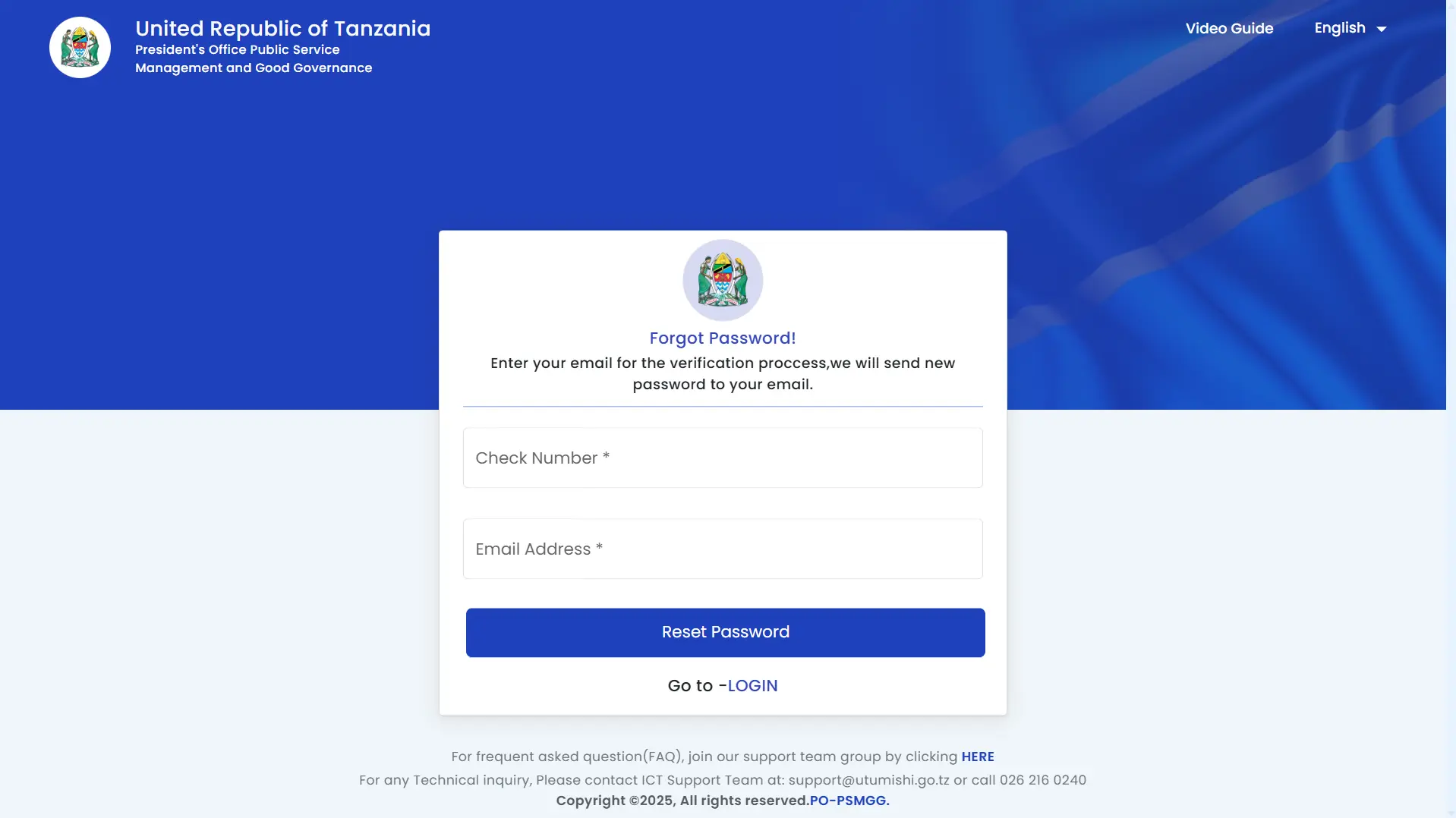
To begin resetting your ESS Utumishi password, simply follow the step-by-step guide below!
Requirements for Resetting Your ESS Utumishi Account Password
To reset your ESS Utumishi account password, you will need the following:
Step-By-Step Guide to Reset Utumishi Password
Follow these steps to reset your ESS Utumishi account password:
Step 1: Access the ESS Utumishi Portal
Open your browser and type ESS Utumishi or visit the portal by clicking on this link: http://ess.utumishi.go.tz/. This will direct you to the Watumishi portal, where you can start the password recovery process.
Step 2: Click on “Reset Password?”
Now, you will see the “Reset Password?” button on the right side of the page. Click on it to proceed to the password recovery form. This option will help you reset your password and regain access to your account.
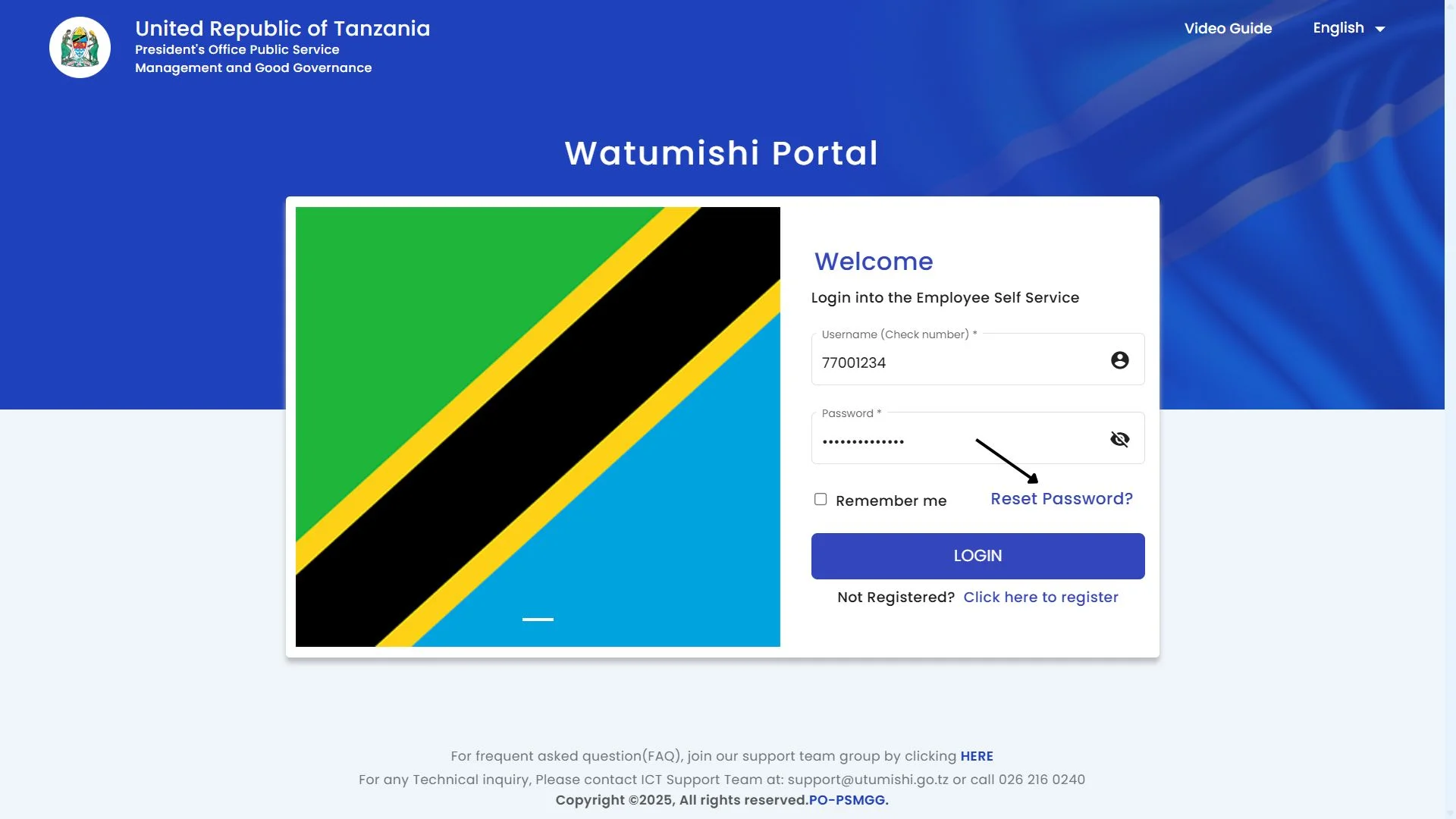
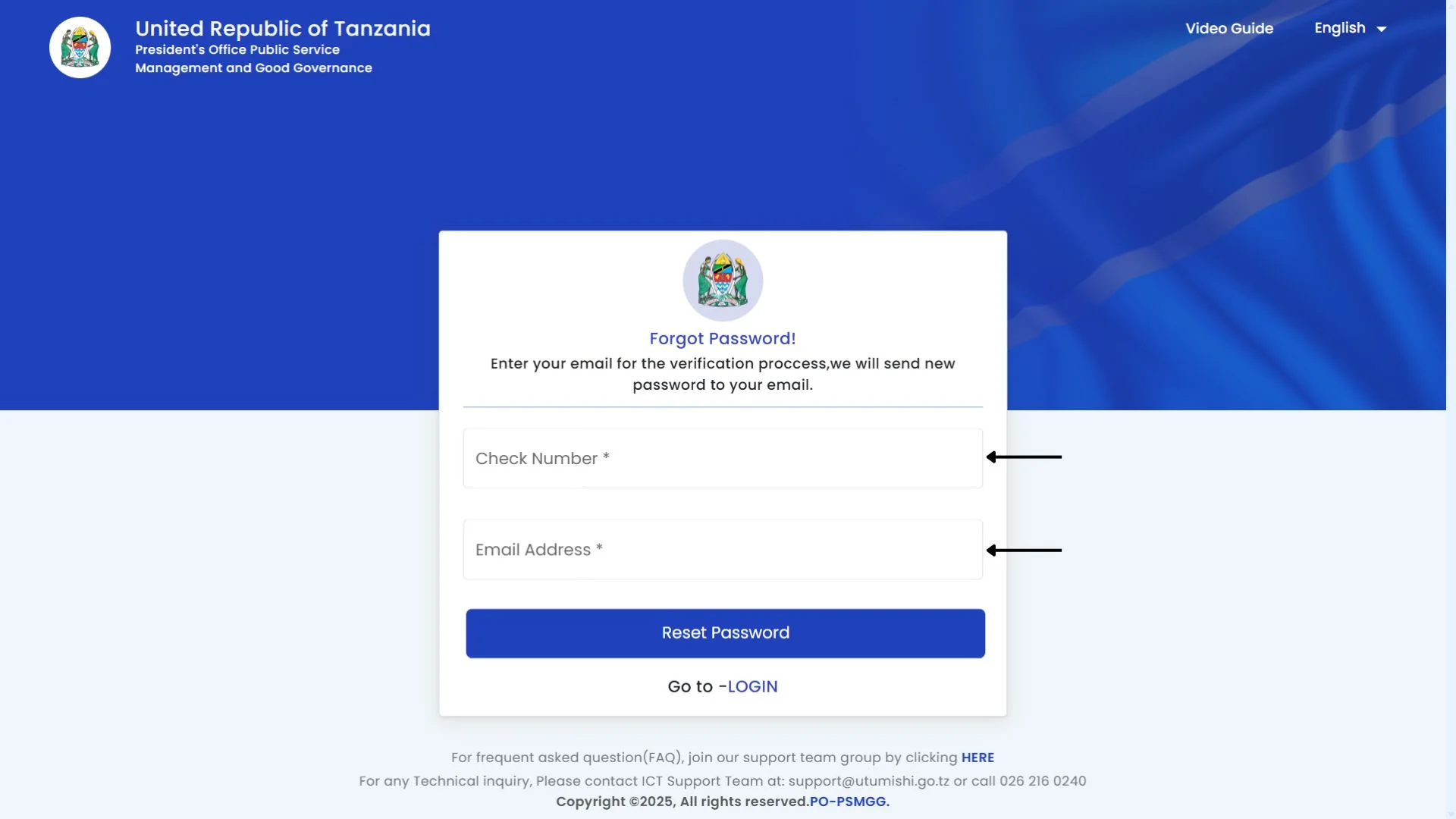
Step 3: Enter Your Check Number and Email Address
After clicking the “Reset Password?” link, a new form will appear on your screen. In this form, you need to provide the following details:
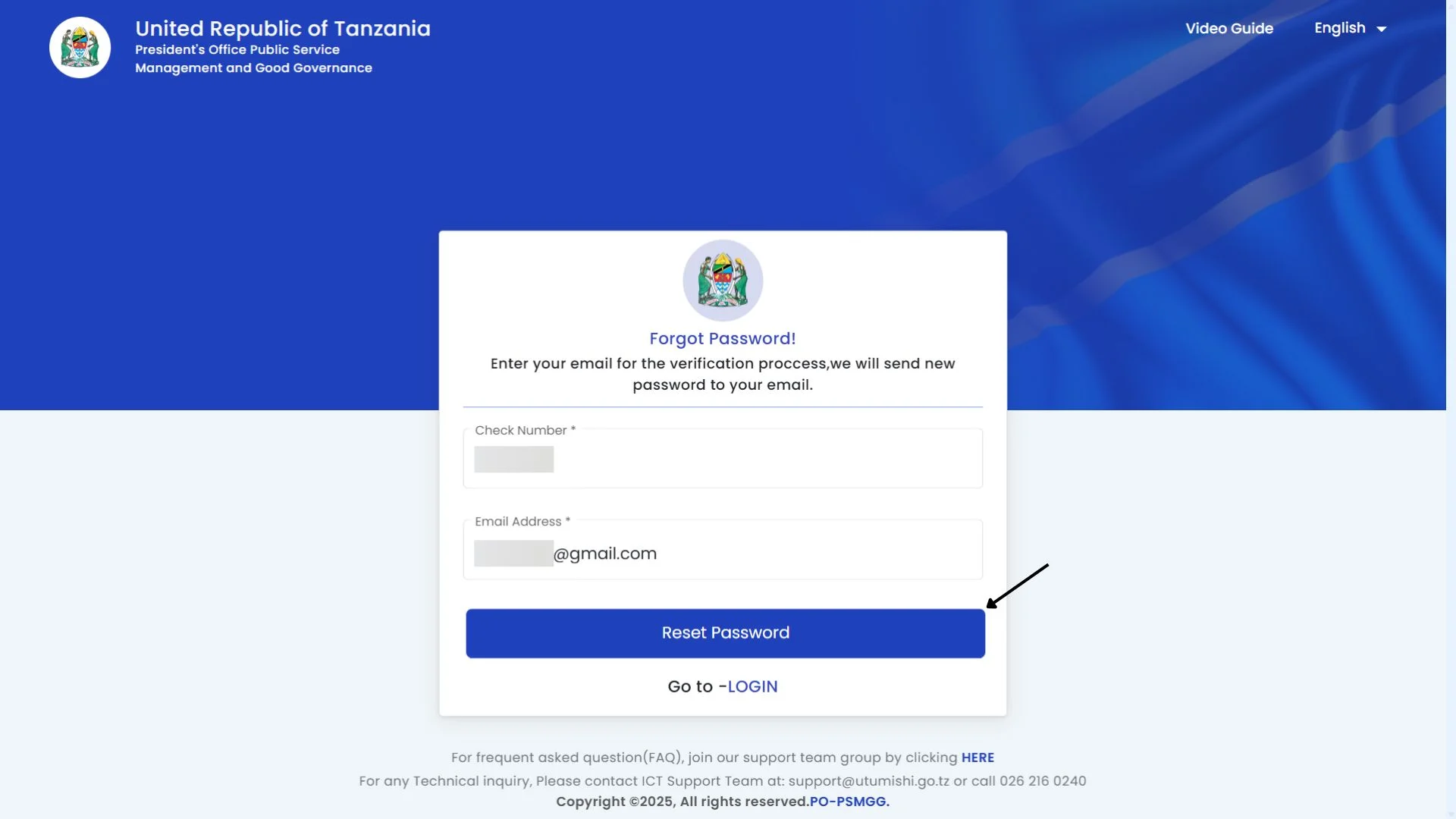
Step 4: Submit Your Request
Once you’ve entered your check number and email address, double-check your details to ensure everything is correct. When you’re sure the information is accurate, click on the “Reset Password” button. A confirmation message, such as Password Reset Success, will appear on your screen.
Step 5: Receive Your New Password
Now that your request has been submitted, you will receive an email from ESS Utumishi containing your new username and password. The email will provide the necessary login details for your account.
Step 6: Log In with Your New Password
After receiving the email, go back to the portal. Enter your check number and the new password and log in to your account.
Why You Might Need to Reset Your ESS Utumishi Password?
There are several reasons why you might need to reset your ESS Utumishi password, including:
Conclusion
Resetting your ESS Utumishi password is an easy process. Just follow the steps above and regain access to your account in no time. It’s always important to keep your account secure, so make sure to choose a strong password and take advantage of any security features offered. If you face any difficulties, don’t hesitate to reach out to customer support for help.